flowchart LR
  subgraph notebook [Notebook session on compute pool]
    PY[Python kernel]
    Rcell["R via %%R and rpy2"]
  end
  WH[Virtual warehouse]
  PY --> Rcell
  PY -->|Snowpark from Python| WH
  Rcell -->|RSnowflake dbplyr sfr_query| WH
  SQLcell[SQL cells] --> WH
7 Snowflake Workspace & Notebooks
Snowsight UX, compute, and what Workspace provides for R
Keywords
snowflake, R, RStudio, Posit, VS Code, workspace notebooks, snowflakeR, RSnowflake, mlops
7.1 Overview
Before bootstrapping R, understand where you work in Snowflake. Snowsight is the web UI. Workspace is the project-oriented development area within Snowsight. Notebooks are interactive, cell-based environments for Python, SQL, and (with this guide and package) R.
Workspace Bootstrap covers setup_notebook() next.
Important
Workspace Notebooks required. The multi-language R stack in this guide (setup_notebook(), %%R, snowflakeR) runs only in Workspace Notebooks on ML Container Runtime — not in legacy standalone Snowsight notebooks.
7.2 Learning Objectives
- Navigate Snowsight → Workspace → Notebook
- Choose and configure compute for a notebook session
- Use Python, SQL, and Markdown cells — and know where R fits
- Understand session lifecycle (start, active, restart, end)
7.3 Snowsight and Workspace
Snowsight provides:
- SQL worksheets and query history
- Dashboards and Streamlit apps
- Admin and governance screens
- Workspace — projects, files, Git repos, notebooks
Workspace adds a developer workflow:
| Capability | Benefit |
|---|---|
| Project + files | Organize notebooks, scripts, configs (snowflaker_config.yaml) |
| Git integration | Clone, commit, push — team collaboration |
| Notebooks | Cell-based Python/SQL/Markdown (Jupyter-compatible in Workspaces) |
| Compute session | Attached warehouse + container runtime for kernel |
Note
Terminology: “Workspace Notebook” means a notebook running inside your Snowflake account — not Jupyter on your laptop. Kernel and data stay in-account.
7.3.1 Snowsight navigation
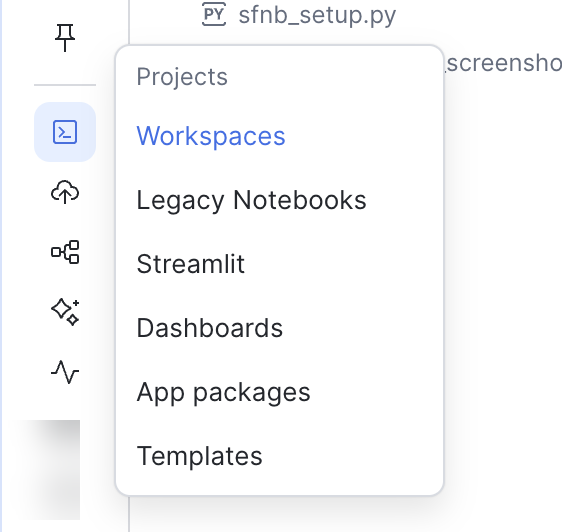
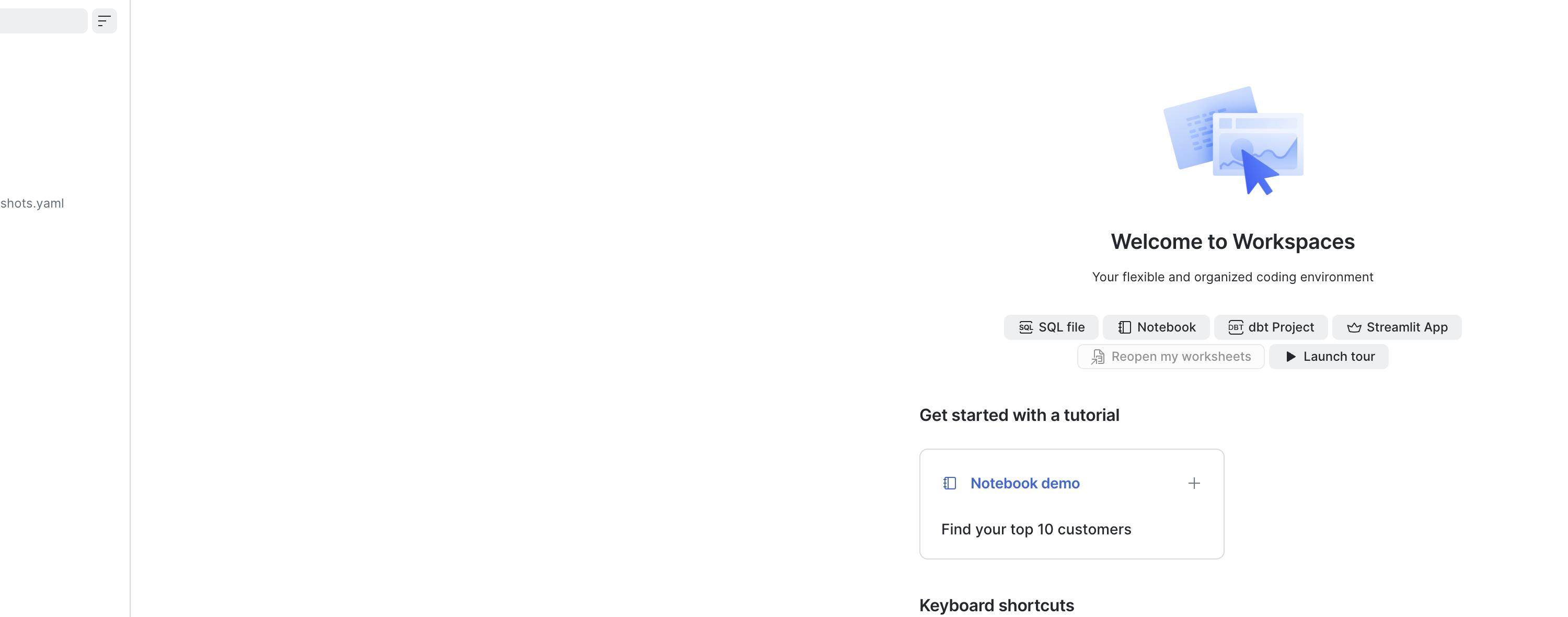
Screenshots are cropped to the relevant UI area — to aid readability.
7.4 Workspace notebooks
All R content in this guide assumes Notebooks in Workspaces — the Jupyter-compatible experience with Git integration and ML Container Runtime. Create and open notebooks from Snowsight → Workspace.
7.5 Creating and opening a notebook
Typical flow — product walkthrough: Snowflake Notebooks in Workspaces; Workspaces (files, folders, Git).
- Open Snowsight → Workspace (Workspaces overview)
- Select or create a workspace (private or shared); optionally connect a Git repository (Integrate workspaces with Git)
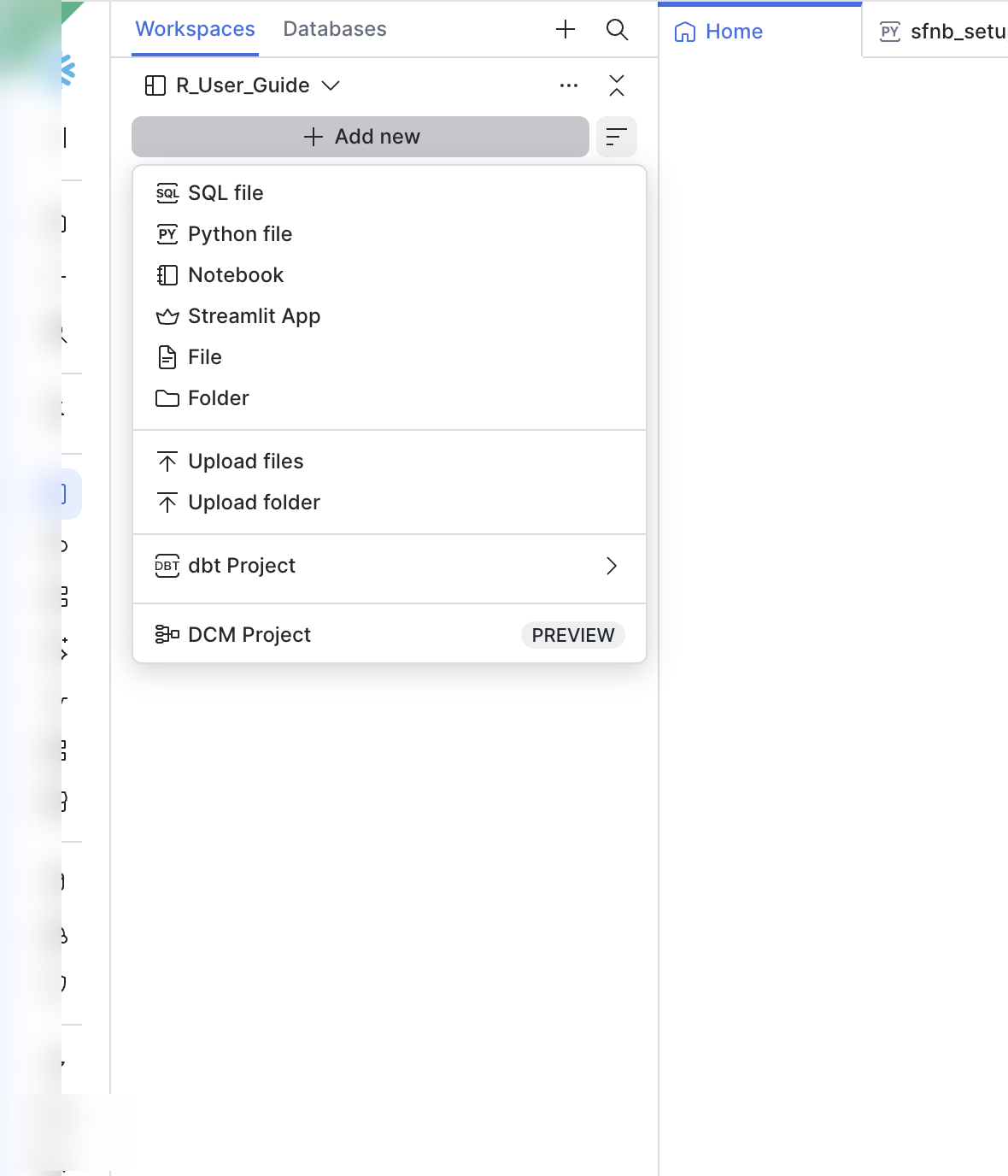
- Create notebook (+ Add new / upload
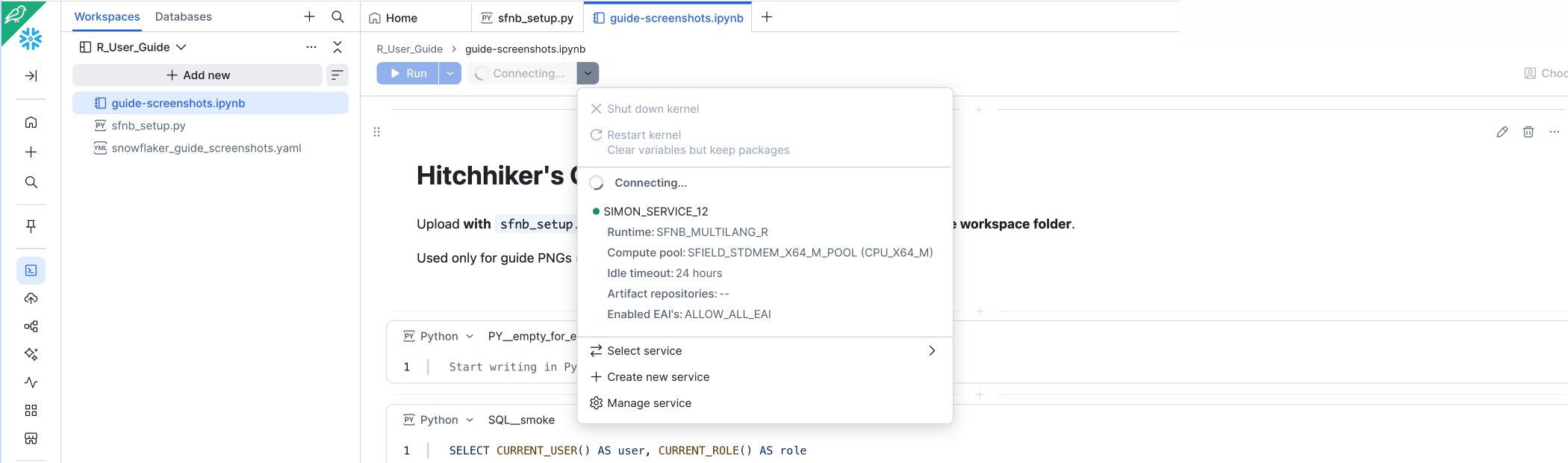
.ipynb) or open an existing notebook file in the workspace (overview — file management) - Start session — connect to a notebook service so the kernel runs on container runtime (compute setup). When configuring the service (Connected → Edit), you can optionally select a Custom Runtime Environment (CRE) registered by you or your organisation (
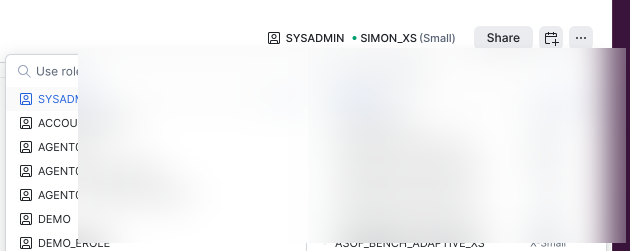
cre@<org_name>) so R,%%R, snowflakeR, and RSnowflake are pre-installed — see CRE & ML Jobs. If no CRE is available, use the default ML Container Runtime and bootstrap R in step 7. - Set execution context: role, warehouse, database, schema (editing and running — set execution context)
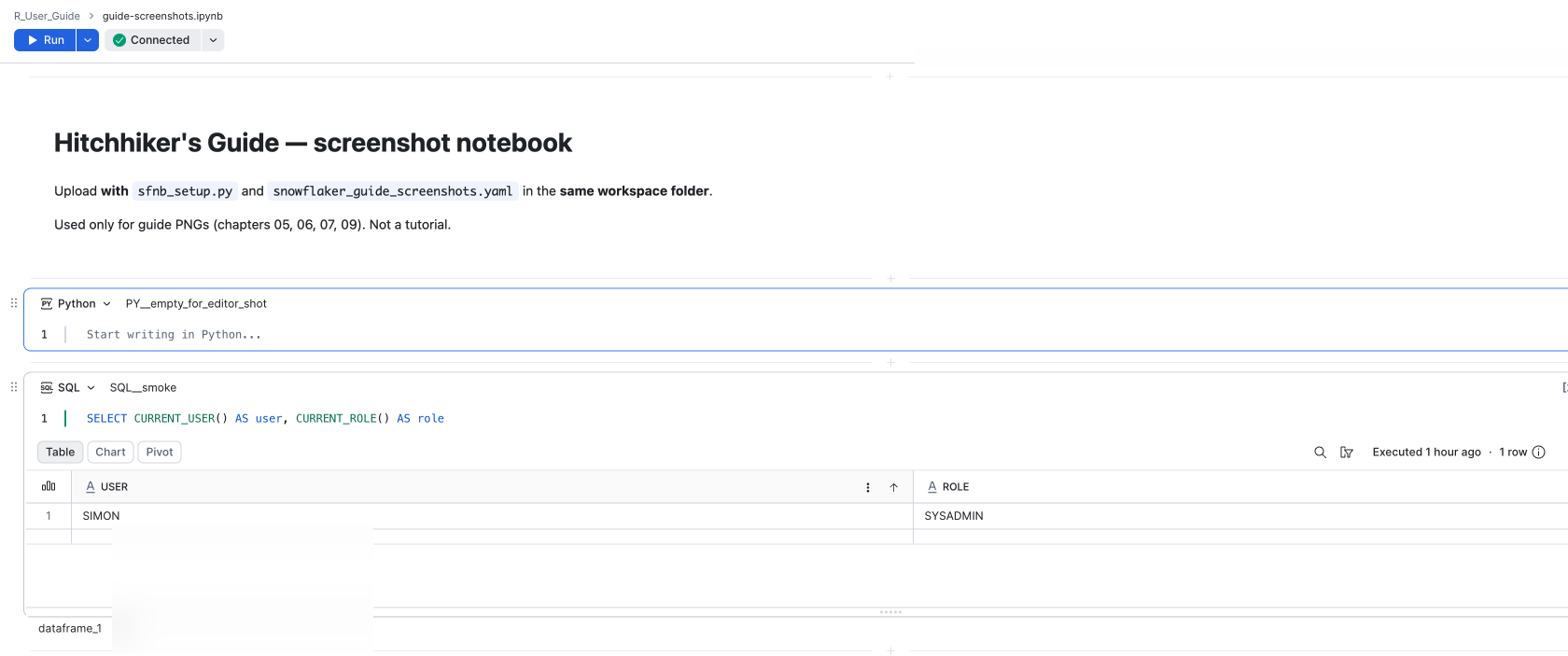
- Run a SQL or Python smoke cell (
SELECT CURRENT_USER(), etc.) (run cells) - If you did not select a CRE in step 4: run the Python bootstrap cell (
setup_notebook()) — Workspace Bootstrap
Warning
Workspace does not auto-set database/schema in all versions — set context explicitly in YAML config or SQL, or fully qualify object names.
7.5.1 Notebook workflow in Snowsight
7.6 Notebook toolbar & session
Workspace session controls (reference):
| Control | Purpose |
|---|---|
| Start / Active | Start kernel session; view memory/CPU; restart or end |
| Run all / Stop | Execute all cells or cancel |
| Package selector | Install Python packages (Anaconda channel on some runtimes) |
| Scheduler | Run notebook on a schedule via Tasks |
| Connected / Edit | Role, warehouse, database, schema, External Access |
| Export / duplicate | Share or fork notebooks |
For R without a CRE: run the Python bootstrap cell first; packages install via micromamba + YAML tarballs — not the Anaconda package picker alone.
7.7 Cell types
Workspace notebooks expose three cell types. There is no separate “R cell” type — you run R in a Python cell whose first line is %%R.
| Cell type | Kernel / compute | Use | R in this guide |
|---|---|---|---|
| Python | Python kernel on compute pool | Snowpark, pandas, setup_notebook(); R via %%R magic (first line of the cell) |
Bootstrap once unless you attached a CRE in step 4 |
| SQL | Virtual warehouse | Queries, DDL, context | Same as any SQL worksheet |
| Markdown | — | Documentation | Explain steps to collaborators |
R = Python cell +
%%R, not a fourth cell type
Add a Python cell, put %%R on the first line, then write R below it. IPython (via rpy2) runs that body in an embedded R interpreter inside the same Python process. Snowsight may display the cell with an R icon or label, but the notebook kernel is always Python — there is no standalone R kernel. See Architecture.
Execution model:
- SQL cells run on the warehouse you selected in context, or switch to via
USE WAREHOUSE. The warehouse can be changed at any time, and the context will be updated accordingly. This is useful for running SQL queries in different warehouse sizes. - Python kernel runs on ML Container Runtime (compute pool selected for the notebook session)
%%Rin a Python cell — R code runs inside the Python process via rpy2. When R calls RSnowflake / dbplyr or snowflakeRsfr_query(), that SQL runs on the virtual warehouse (same as SQL cells), not on the container pool
See R Cells & Interop for data exchange patterns. Container internals (nbctl, uvenv kernel, /filesystem): Appendix G.
7.8 Compute setup
Notebooks use ML Container Runtime for the interactive kernel (compute setup docs):
| Component | Runs on | Pays |
|---|---|---|
Python kernel (hosts %%R / rpy2) |
Compute pool / container runtime | Container credits |
| SQL cells; Snowpark from Python | Virtual warehouse | Warehouse credits |
SQL from R (%%R + RSnowflake, dbplyr, snowflakeR) |
Virtual warehouse | Warehouse credits |
| Model training via snowflakeR ML APIs | Mixed — ML API may use warehouse + stages | Both |
Practical tips:
- Size warehouse for SQL-heavy notebooks (including R pipelines that
collect()late); size compute pool for package install and kernel memory - Suspend warehouse when idle; end session when done with notebook
- Enable EAI before bootstrap (not usually needed if you use a CRE with packages pre-baked) when installing from CRAN/GitHub/pip (Network & EAI)
7.9 What Workspace provides for R teams
- Data locality — Query and train without bulk export
- Git-backed projects — Reproducible notebooks and configs
- Shared ML objects — Same Feature Store / Registry as Python colleagues
- Governance — Roles, audit, network rules, tags
- Scheduling — Promote notebook to recurring Task
Trade-offs vs desktop RStudio:
- Without a CRE: cold-start
setup_notebook()bootstrap and EAI setup for outbound installs (Workspace Bootstrap, Network & EAI) - With a CRE: faster startup — R stack baked into the image; bootstrap cell often unnecessary
- Notebook UX vs full IDE (Connections Pane, debugger)
- Container runtime package constraints for serving (conda-forge) vs interactive training
7.10 Alternatives in the same account
| Option | Best for |
|---|---|
| Workspace Notebooks | Mixed Python/R/SQL, team Git repos, ML exploration |
| Posit Workbench Native App | Full RStudio/Posit IDE in Snowflake |
| ML Jobs | Non-interactive batch on container runtime |
| Local RStudio + RSnowflake | Familiar desktop IDE, connections.toml auth |
| RStudio Server in SPCS | Custom containerized IDE (you operate the image) |
7.11 Next steps
Workspace Bootstrap — setup_notebook() and YAML.
Network & EAI — outbound access for installs.
R Cells & Interop — %%R, outputs, path discovery.